
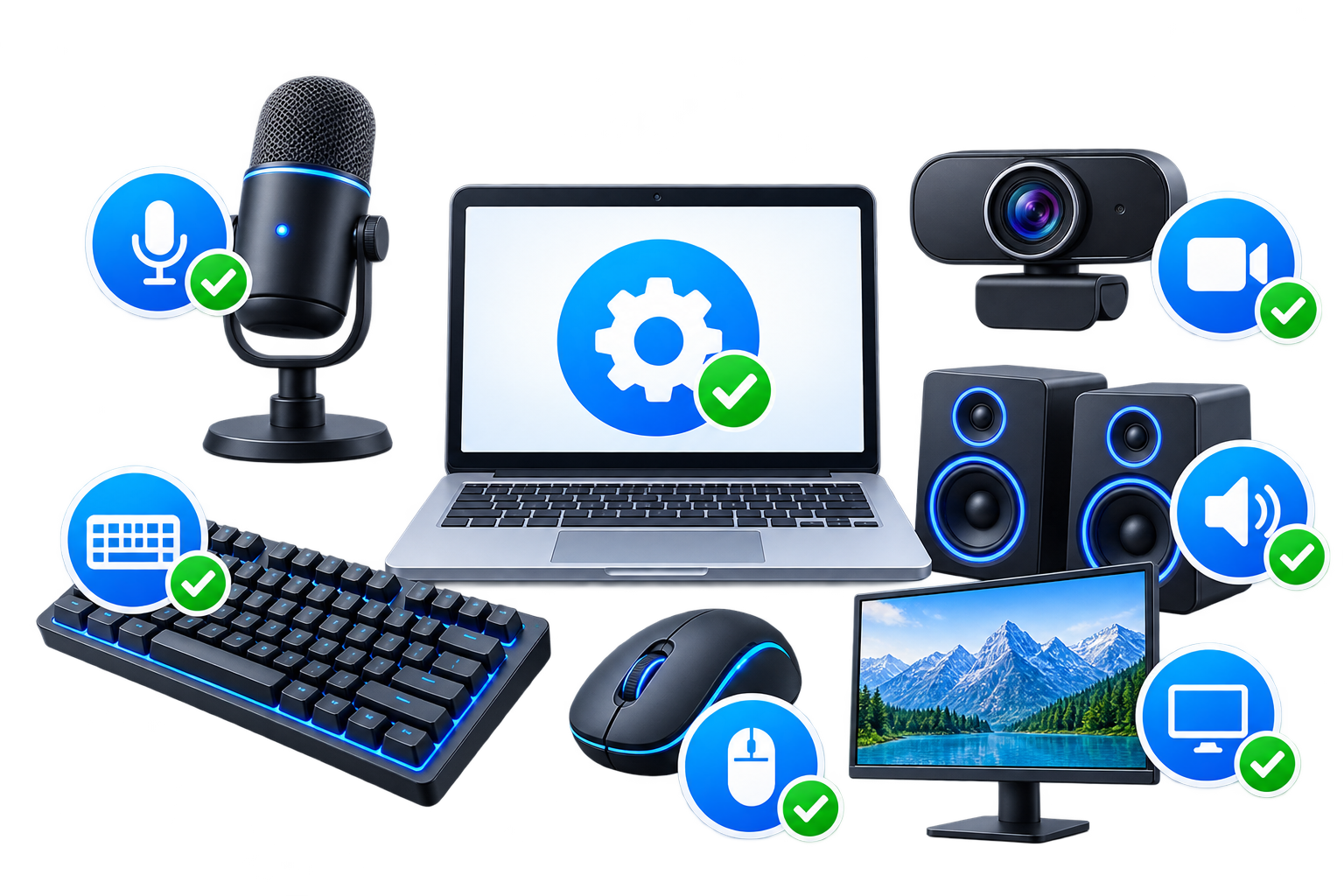
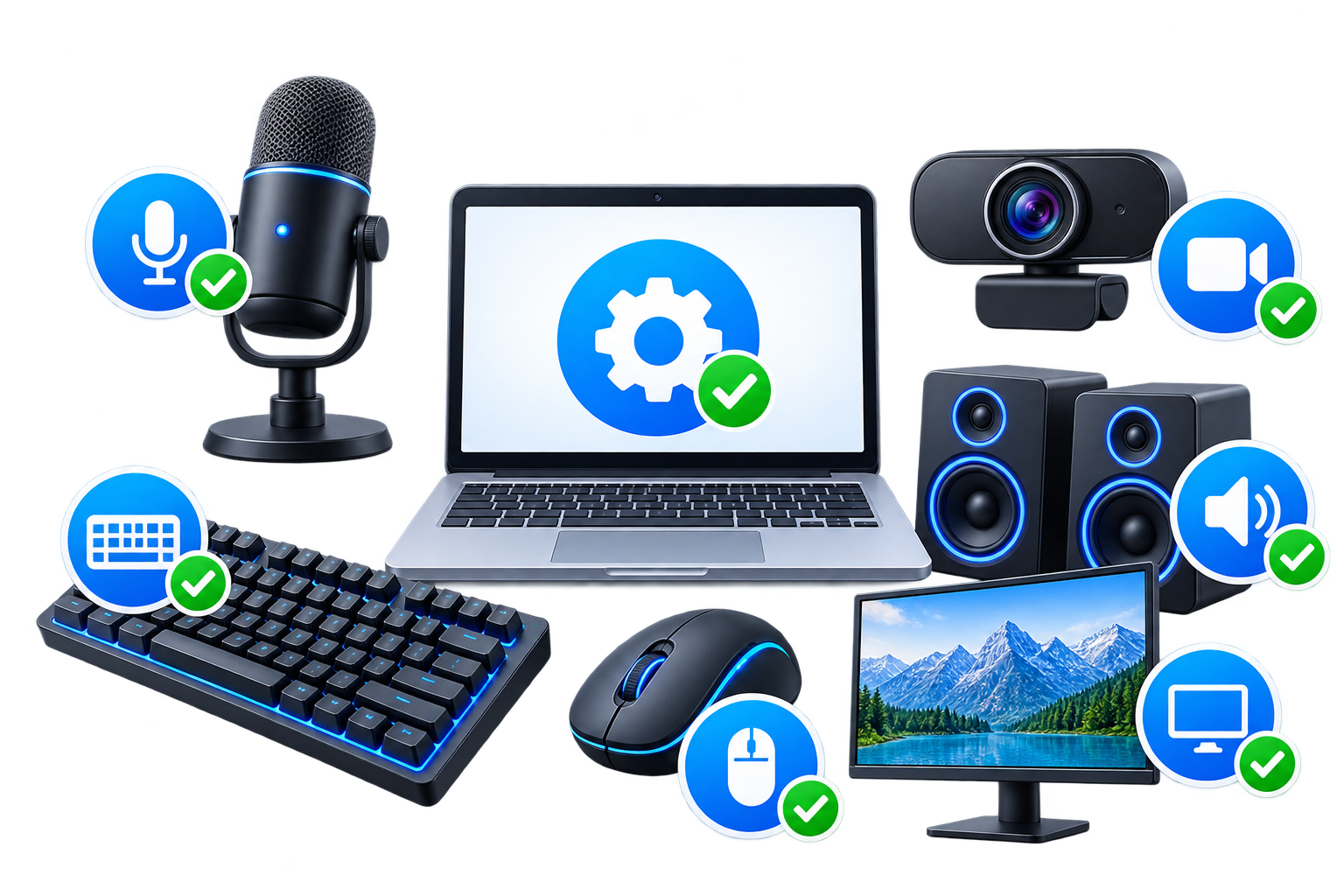
Before joining an online meeting, recording a video, playing a game, or starting a live stream, it is useful to check that your computer hardware is working correctly. A microphone that is too quiet, a webcam that is not detected, or a keyboard key that does not respond can quickly cause problems.
You do not always need to install special software to perform these checks. Many basic hardware tests can be completed directly in your browser. EKO24.NET provides free Device & Hardware Tools for testing common computer and mobile device components online.
Test Your Microphone Online
A microphone test can help you confirm that your browser detects your microphone and that audio is actually being received. This is useful before video calls, voice recordings, online classes, gaming sessions, or livestreams.
Open the EKO24.NET Microphone Test, allow microphone access when your browser asks for permission, and start speaking. The tool lets you check whether your microphone is receiving sound without installing additional software.
Check Your Webcam Before a Video Call
A quick webcam check can prevent last-minute problems before an important meeting or recording. If the camera is connected correctly, your browser should be able to display its video feed after you grant permission.
With the Webcam Test, you can verify that the selected camera works directly in your browser. If no image appears, check the browser permission settings and make sure another application is not already using the camera.
Find Keyboard Keys That Are Not Working
Keyboard problems are sometimes difficult to notice, especially when only one or two keys have stopped responding. Testing individual keys can help determine whether the problem affects a particular key or the entire keyboard.
The EKO24.NET Keyboard Tester provides a simple way to press keys and check whether the browser detects them. It can be useful when checking a laptop keyboard, an external keyboard, or a keyboard you have recently connected.
Test Your Mouse Buttons
A mouse can appear to work normally even when one button has become unreliable. Checking the main buttons individually can help identify clicking problems before you replace the device.
Use the Mouse Test to check mouse input directly from your browser. It provides a quick way to verify that common mouse actions are being detected correctly.
Check Your Left and Right Speakers
Stereo audio problems can be caused by incorrect settings, disconnected speakers, headphones, or an audio channel that is not working. Testing the left and right channels separately can make these problems easier to identify.
The Speaker Test lets you test the left speaker, right speaker, or both channels. You can also adjust the test volume, making it useful for speakers and headphones.
Check Your Screen Resolution
Your display information can be useful when troubleshooting websites, games, screenshots, video content, or responsive layouts. Screen resolution and browser viewport size are not always the same, especially on high-density displays and mobile devices.
The Screen Resolution Checker displays information such as your screen resolution, available screen size, browser viewport, device pixel ratio, color depth, orientation, and other display details.
Do These Tests Require Software Installation?
No installation is required for these EKO24.NET tools. They run through your web browser using capabilities already available on modern devices. Some tests, particularly the microphone and webcam tests, require browser permission before they can access the corresponding hardware.
If you deny a permission accidentally, you can usually change it from your browser's site permissions and run the test again.
Frequently Asked Questions
Can I test my microphone without recording anything?
Yes. A browser-based microphone test can check whether audio input is being detected without requiring you to create and save a traditional audio recording.
Why is my webcam not appearing in the browser?
Check that camera permission has been granted to the website. You should also make sure the camera is connected correctly and that another application is not currently preventing the browser from accessing it.
Can I check individual keyboard keys?
Yes. The Keyboard Tester allows you to press keys and see whether the browser detects the input, which can help identify keys that are not responding.
How can I test the left and right speakers separately?
Use the Speaker Test and select the left or right channel. Testing each side separately can help identify stereo channel or speaker problems.
Does the Screen Resolution Checker work on phones?
Yes. It can display screen and browser information on compatible desktop, tablet, and mobile browsers.
Final Thoughts
Testing your device before a meeting, recording, livestream, or gaming session can save time and help identify simple hardware problems early. Instead of installing separate programs for every check, you can use EKO24.NET's free Device & Hardware Tools to test your microphone, webcam, keyboard, mouse, speakers, and screen directly from your browser.