
Sometimes you do not need the video at all. You may have recorded an interview, a podcast, a lecture, a voice-over, or your own video project and simply want an audio copy that is easier to listen to or reuse.
That is where a video-to-MP3 converter is useful. Instead of opening a full video editor, exporting a new project, and working through complicated settings, you can extract the audio in a few steps.
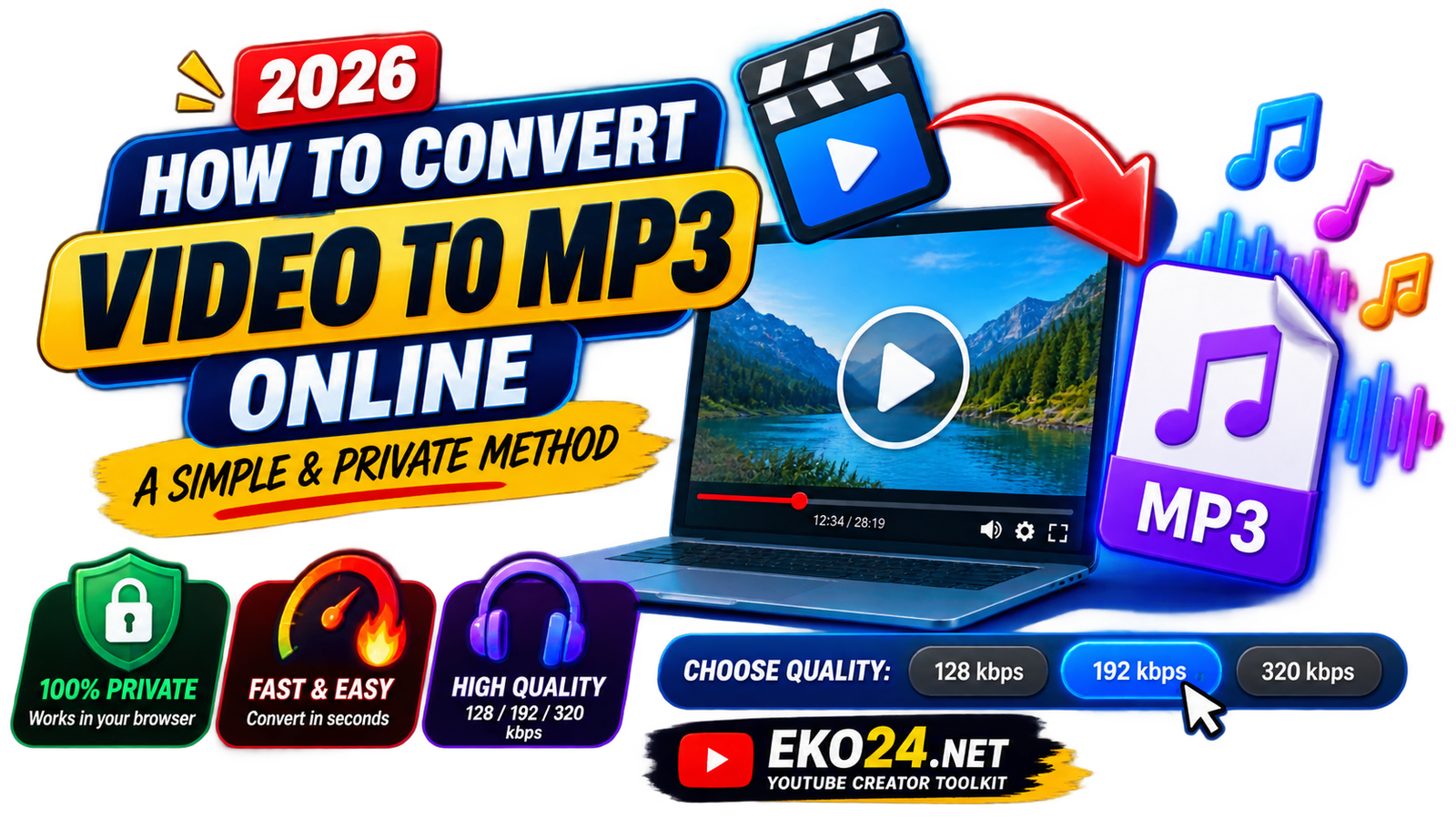
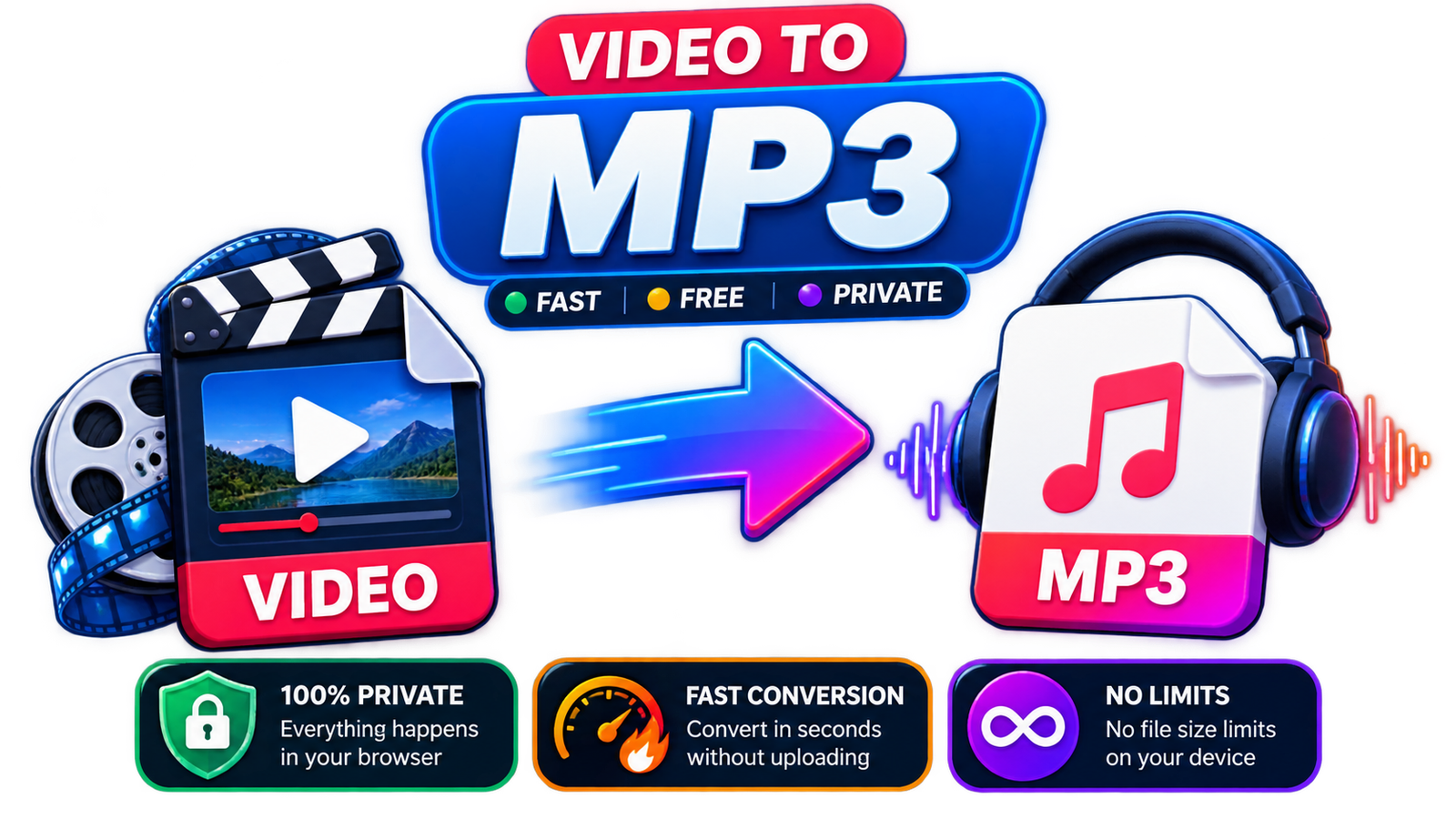
With the EKO24.NET Video to MP3 Converter, the conversion happens directly in your browser. Your source video does not need to be uploaded to EKO24.NET, which makes the workflow simple and privacy-friendly.
Why Convert a Video to MP3?
MP3 is still one of the most widely supported audio formats. It works on phones, computers, car audio systems, media players, editing applications, and many other devices.
Converting your own video to MP3 can make sense when you want to:
- create an audio-only copy of a podcast or interview;
- listen to a lecture or presentation without keeping the video open;
- extract your own voice-over or narration for another project;
- save an audio version of a recording for easier playback;
- reduce the amount of storage required when the picture is no longer needed.
How Browser-Based Video to MP3 Conversion Works
Traditional online converters often require you to upload a video to a remote server, wait for the server to process it, and then download the result. A browser-based converter can take a different approach.
EKO24.NET uses a browser audio engine to process the selected file on the visitor's own device. In practical terms, the conversion work is handled by your browser rather than by EKO24.NET's server.
128, 192 or 320 kbps: Which MP3 Quality Should You Choose?
The bitrate controls how much audio data is used each second. A higher bitrate generally preserves more detail, but it also produces a larger MP3 file.
128 kbps
This is a practical choice for speech-heavy material such as lectures, spoken notes, interviews, and voice recordings where keeping the file small matters more than preserving every audio detail.
192 kbps
For many people, 192 kbps is the best everyday balance. It offers better audio quality than 128 kbps while keeping the resulting file reasonably compact. If you are unsure which setting to use, this is a sensible starting point.
320 kbps
This is the highest option available in the EKO24.NET converter. It is useful when the source audio is already high quality and you want to retain more detail. The trade-off is a larger file.
How to Convert Video to MP3 with EKO24.NET
You do not need to install desktop conversion software. Open the Video to MP3 Converter and follow these steps:
- Click Choose File and select a video you own or have permission to use.
- Select 128 kbps, 192 kbps, or 320 kbps.
- Click Convert Video to MP3.
- Keep the browser tab open while the conversion runs.
- When you see Your MP3 is ready, click Download MP3.
Conversion speed depends on the length of the video, its codec and resolution, and the performance of your computer or phone. A short video will normally be much easier on the browser than a very large recording.
Which Video Formats Can You Try?
The converter is designed for common formats such as MP4, MOV, WebM, MKV, and M4V. Because processing happens through a browser-based FFmpeg engine, compatibility can also depend on the codecs used inside the source file and the capabilities of the browser and device.
If one unusual file does not convert successfully, testing a standard MP4 or WebM source is a useful way to determine whether the issue is the original codec rather than the converter itself.
Privacy: What Happens to Your Video?
One of the most useful aspects of this implementation is that EKO24.NET does not need to receive the source video for the conversion itself. The selected file is processed locally by the browser.
This also means your own device provides the memory and processing power. Very large files can therefore take longer or put more pressure on a phone or low-memory computer.
A Note About Copyright and Permissions
A file converter is useful for legitimate personal and creative workflows, but the fact that a file can be converted does not automatically give someone permission to use its content.
Use the EKO24.NET converter for videos you created, own, or are authorized to convert. The tool is not designed to accept YouTube URLs, bypass platform restrictions, or download third-party videos.
Do You Need 320 kbps Every Time?
No. Choosing the largest bitrate for every file is not automatically better. If the source is a spoken lecture recorded with modest audio quality, exporting at 320 kbps cannot recreate detail that was never present in the recording.
Think about the source and the intended use. For speech, 128 kbps may be enough. For general-purpose audio, 192 kbps is a strong balance. For good-quality music or recordings where detail matters, 320 kbps can be worthwhile.
Related guides: Best YouTube Setup for Beginners in 2026: Camera, Microphone, Lighting & Budget Gear and How to Find Viral YouTube Video Ideas Before Your Competitors in 2026.
Final Thoughts
Extracting audio should not require a complicated editing workflow. For your own authorized files, a browser-based converter gives you a quick way to turn a video into an MP3 while keeping the source processing on your device.
If you want to try it, open the EKO24.NET Video to MP3 Converter, choose a small video for your first test, select the audio quality you need, and let the browser handle the conversion.