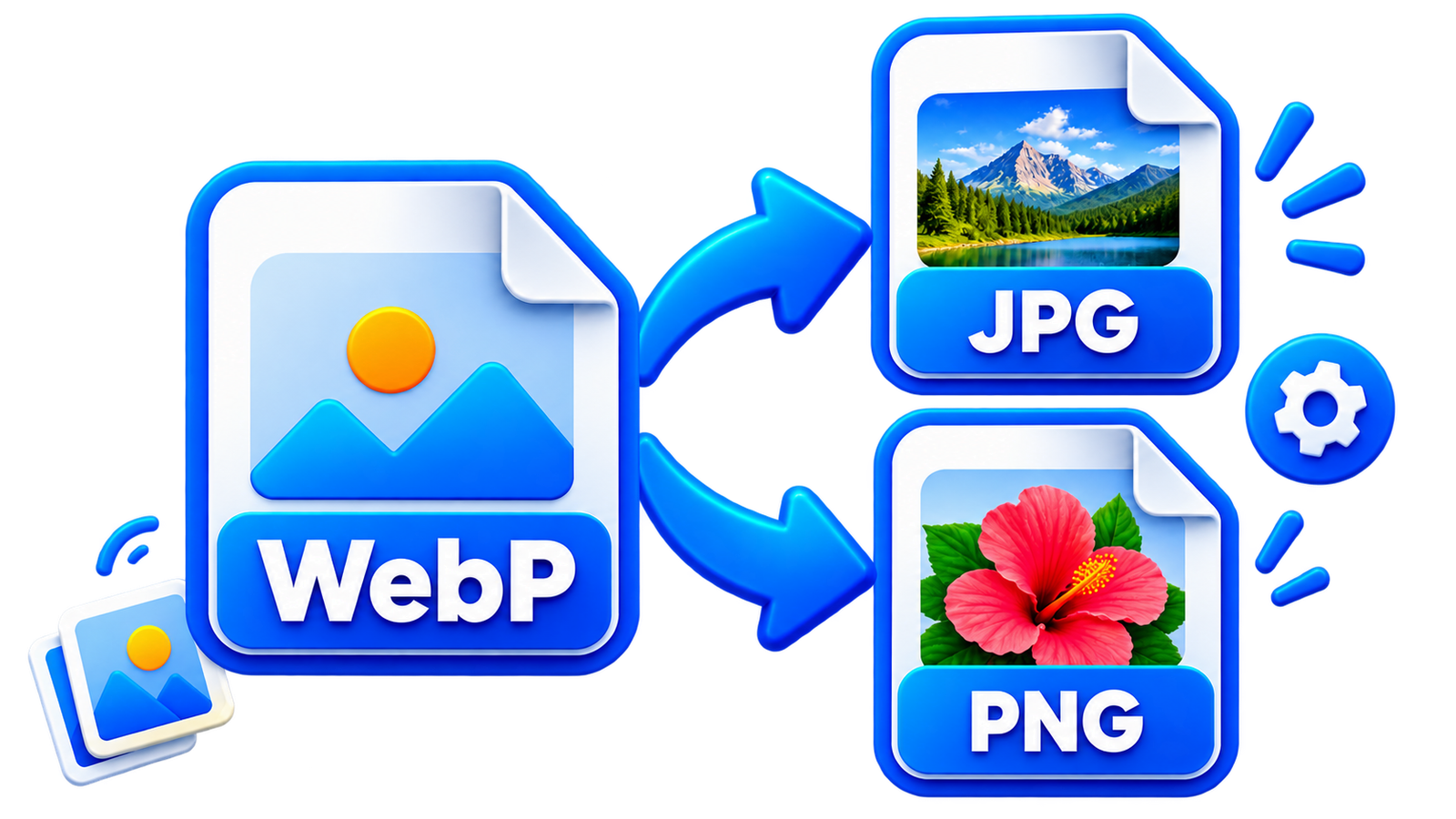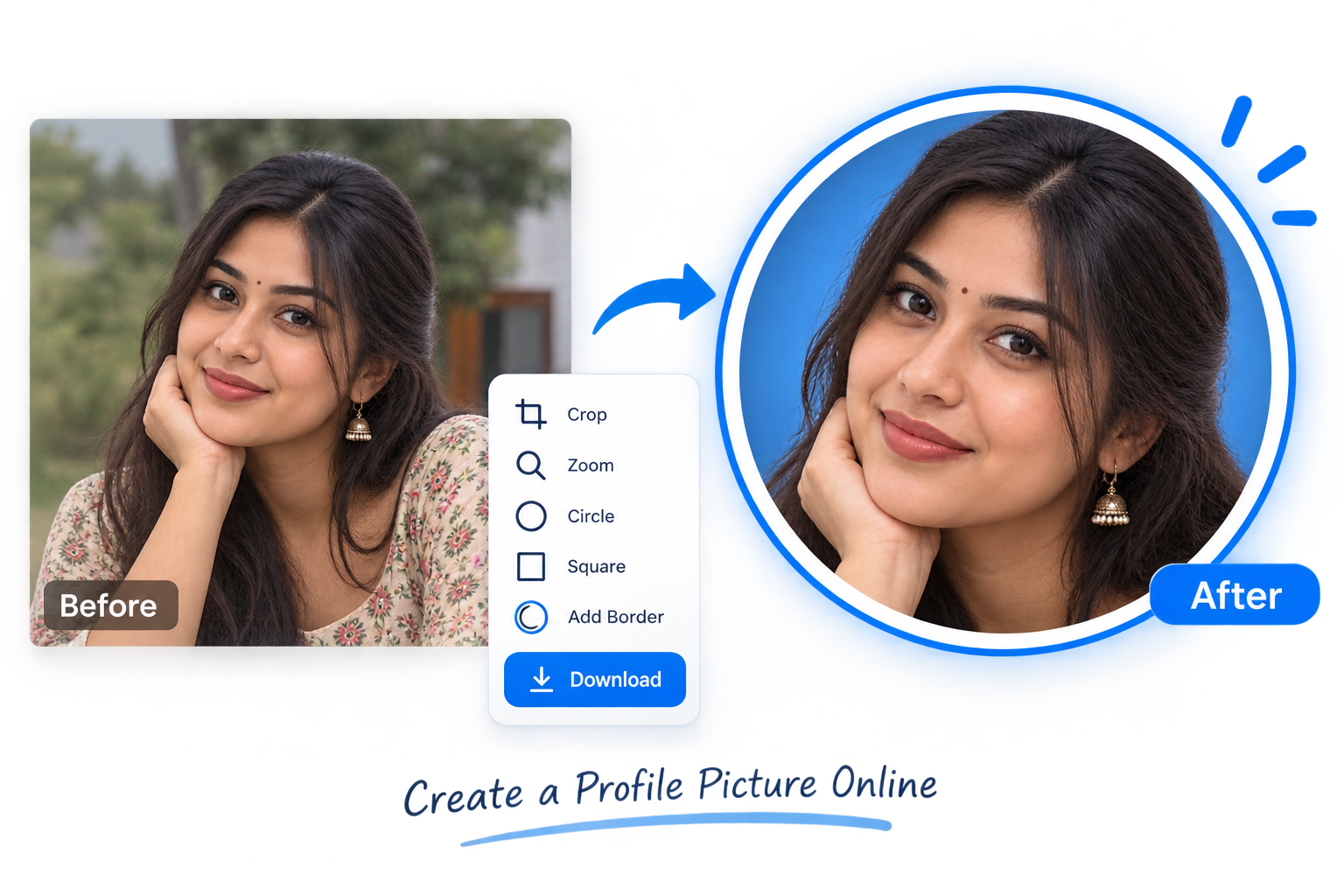


Text inside a photo is useful until you need to copy it. A receipt, screenshot, scanned page or product label can quickly turn into several minutes of manual typing. Image-to-text OCR recognizes the words in an image and turns them into editable text.
The free EKO24.NET Image to Text Converter works with JPG, PNG and WebP files. It supports English, French and Arabic, including mixed-language images, and lets you copy the result or download it as a TXT file.
What is image-to-text OCR?
OCR stands for optical character recognition. It identifies letters and words inside an image and converts them into digital text that can be edited, searched, copied or saved.
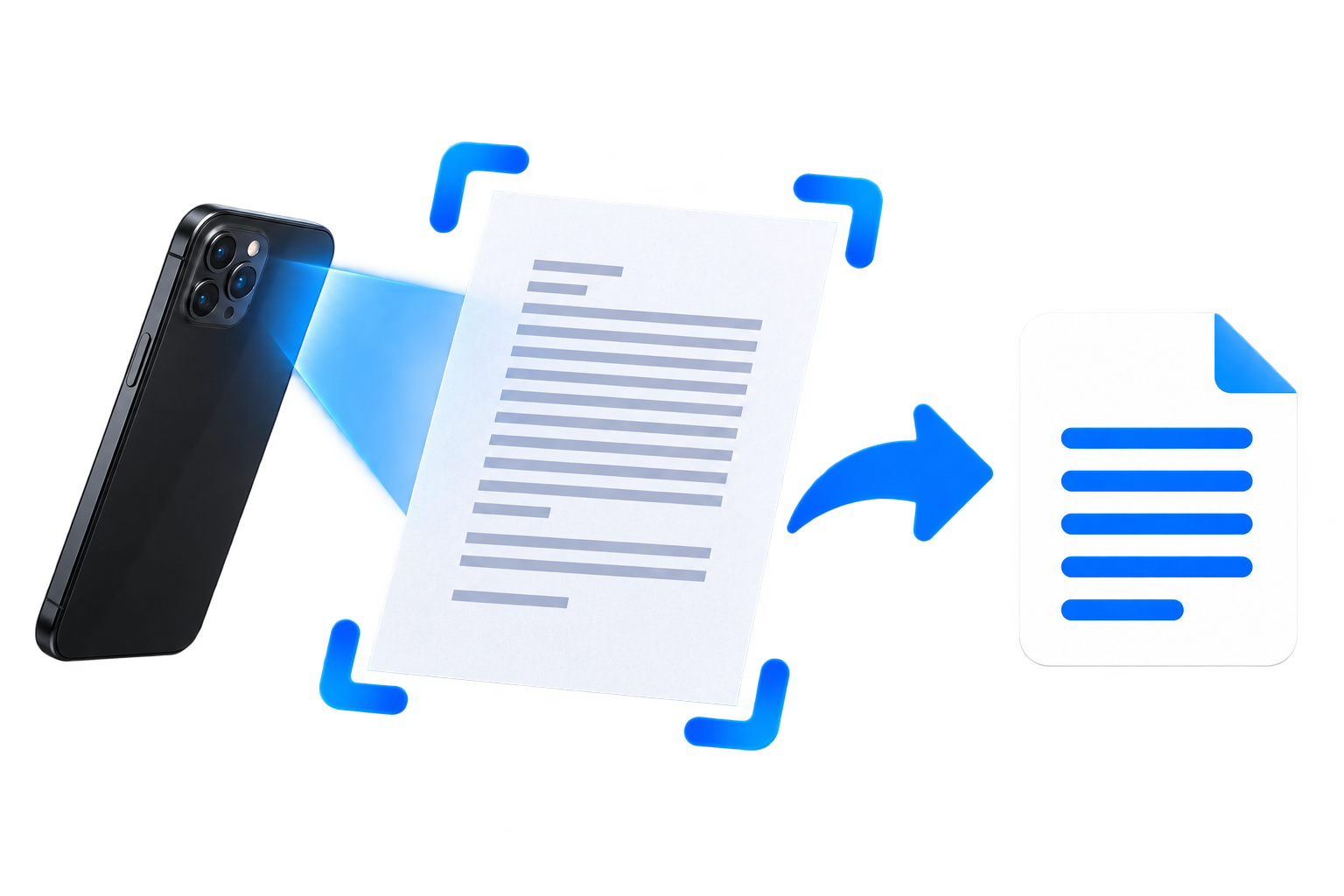
Extract text in four simple steps
- Open the Image to Text OCR tool.
- Select a JPG, PNG or WebP image from your device.
- Choose English, French, Arabic or a mixed-language option.
- Click Extract Text, then copy or download the result.
Arabic, French and mixed-language OCR
To extract Arabic text from an image, select Arabic before starting OCR. French text can be processed in the same way. If a screenshot or document contains more than one language, choose the matching mixed-language option, including Arabic + English or Arabic + French + English.
For better results, use a sharp image with good lighting, strong contrast and straight text. You can remove unnecessary areas first with the Image Cropper. Very small, blurry, handwritten or decorative text may need manual correction.
Copy text from a screenshot
If text in a screenshot cannot be selected normally, upload the screenshot and run OCR. The recognized text remains editable, so you can correct it before copying or downloading it.
Privacy and browser-based processing
EKO24.NET processes the selected image locally in your browser instead of uploading it to the website. OCR components and language data may be downloaded when the tool starts. For sensitive documents, crop out information you do not need and review the extracted text before sharing it.
Frequently asked questions
Can I extract Arabic text from an image?
Yes. Select Arabic, or choose a mixed-language option if the image also contains English or French.
Can I copy text from a screenshot?
Yes. Upload a JPG, PNG or WebP screenshot, select its language and click Extract Text.
Does it work with French text?
Yes. The tool supports French as well as English, Arabic and mixed-language images.
Are my images uploaded to EKO24.NET?
No. The selected image is processed locally in your browser rather than being uploaded to EKO24.NET.
Final thoughts
OCR is a quick way to turn text from photos, scans and screenshots into editable content. For English, French, Arabic or mixed-language images, try the free EKO24.NET Image to Text Converter.
How to check OCR results
OCR is an aid to transcription, not a guarantee of an exact copy. Review numbers, dates, email addresses, names, punctuation and accents against the original image before using the extracted text. For Arabic or mixed Arabic–French–English documents, also inspect reading order, spacing and similar-looking characters. A clean, high-resolution scan with straight lines and strong contrast generally gives the recognition system a better starting point.
For sensitive documents, avoid sharing the extracted text before checking it for personal information. If the page is handwritten, expect lower reliability than with clear printed text. The Tesseract.js FAQ explains that its recognition model is primarily intended for printed text; this is a general technical reference, not proof of which OCR engine EKO24.NET uses.
Practical verification checklist
Compare the first and last lines of every paragraph with the source image. Check digits separately from words, especially on receipts and invoices. Correct the text before saving or copying it into another document.