Social Media Image Generator Online
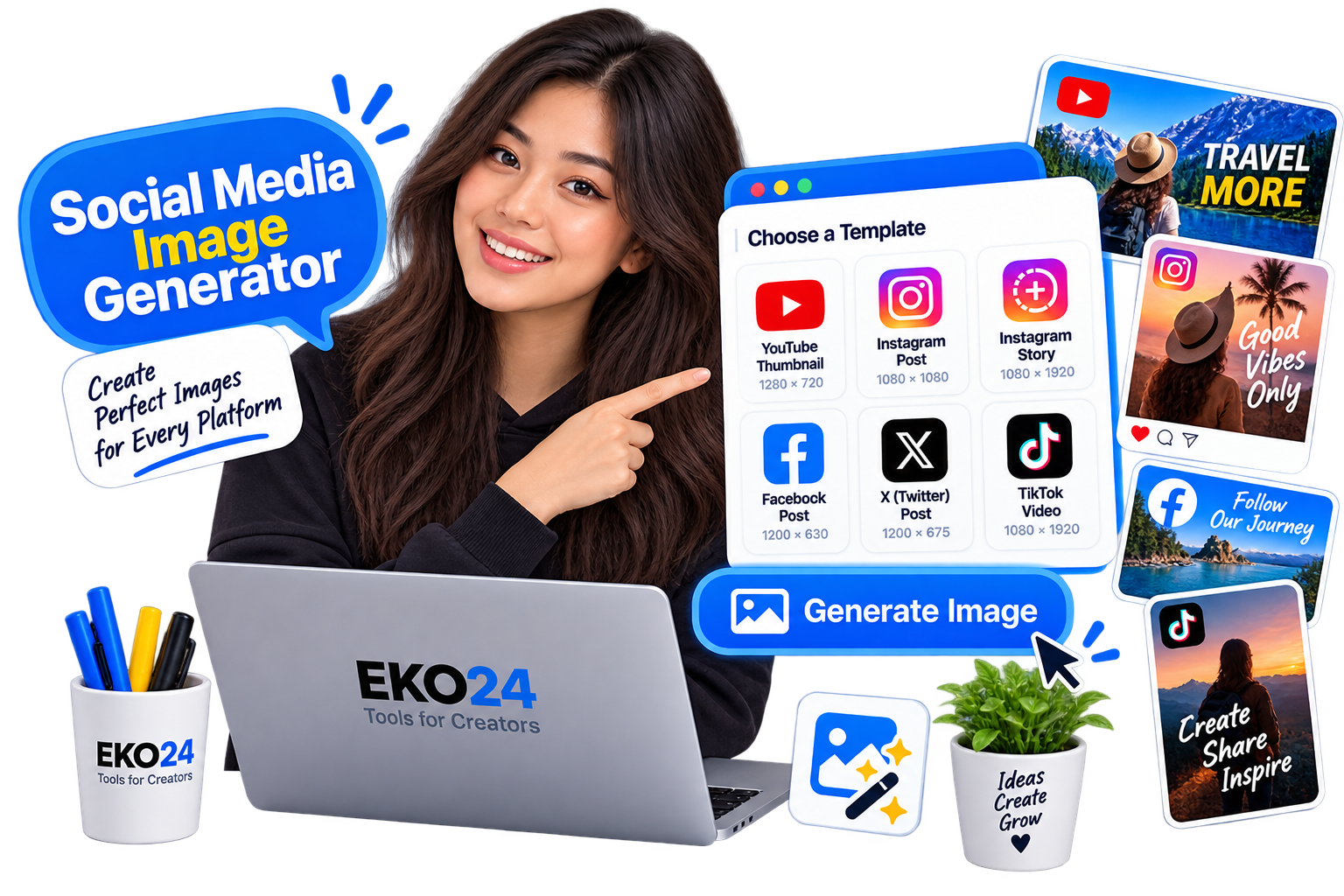
Creating the right image for social media can take time, especially when each platform uses different sizes and formats. With the EKO24.NET Social Media Image Generator, you can create images quickly for different types of social content.
What Is a Social Media Image Generator?
A social media image generator helps you prepare images for posts, stories, thumbnails, banners, and other content. Instead of resizing images manually, you can create the right format directly online.
This can save time when preparing content for platforms such as YouTube, Instagram, Facebook, X, and other social networks.
How to Create a Social Media Image
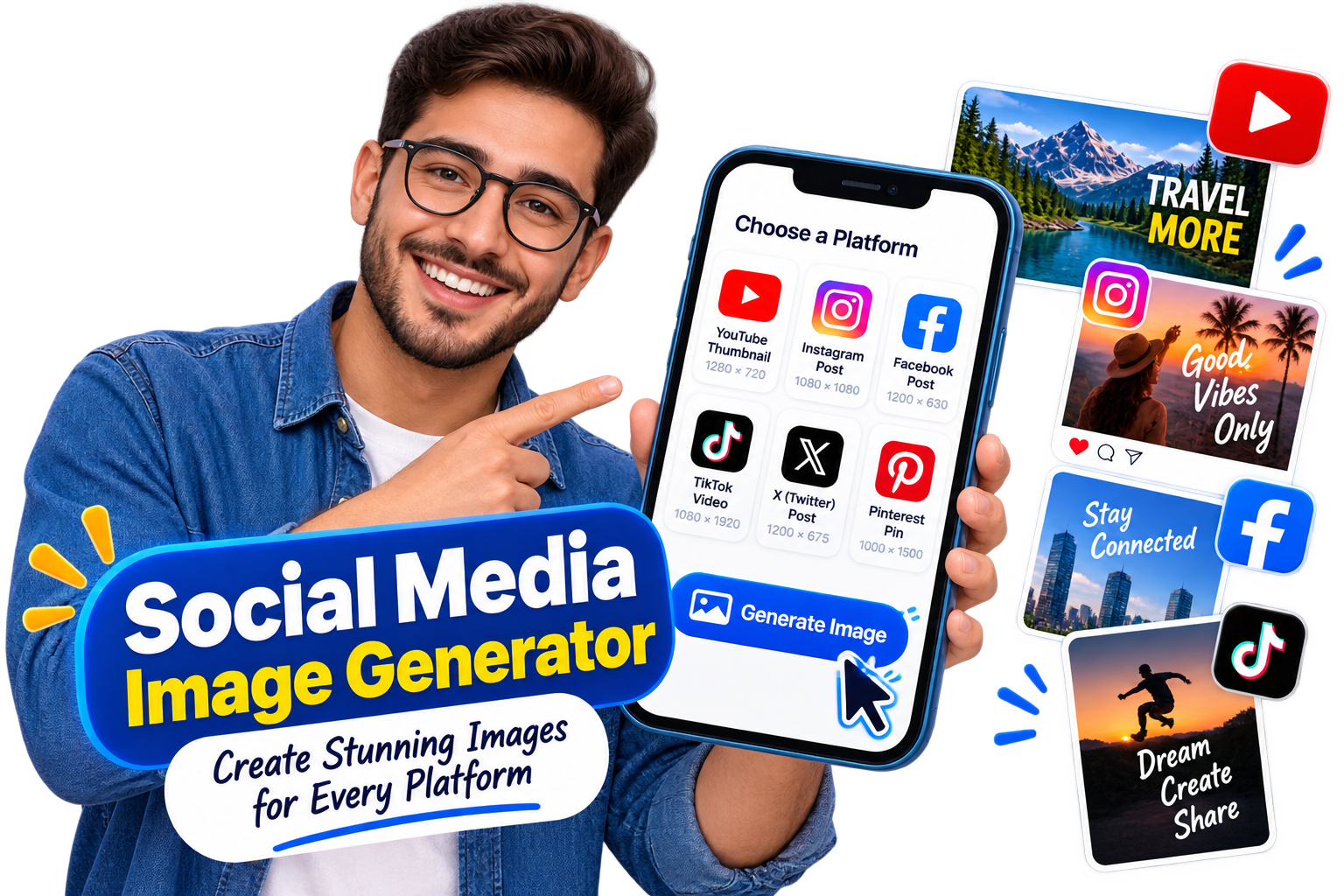
Using the EKO24.NET Social Media Image Generator is simple:
- Choose the type of social media image you want to create.
- Upload or select your image.
- Adjust the image if needed.
- Generate and save the final result.
You do not need advanced design software to create a clean image for your social content.
Why Use the Right Image Size?
Using the correct image size helps your content look better and reduces unwanted cropping or stretching. It can also make your posts, thumbnails, and stories look more professional.
The right dimensions are especially useful when creating content for several platforms at the same time.
Create Social Media Images Online
The EKO24.NET Social Media Image Generator gives you a simple way to create social media graphics online.
Choose the format, prepare your image, and generate the result in just a few steps.
Related Guides on EKO24.NET
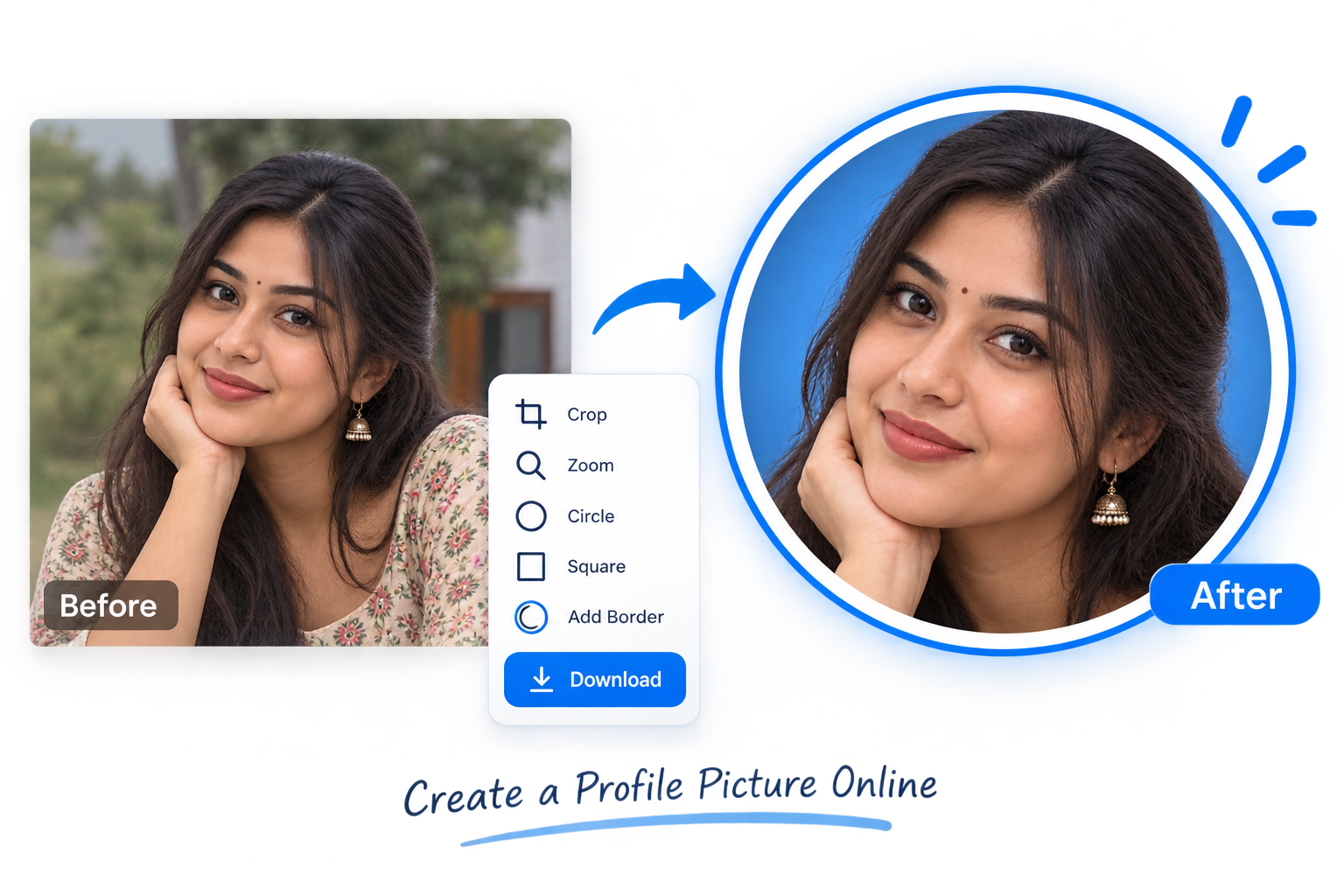
For more context, read Create a Profile Picture Online. You can also explore How to Resize Images Online Without Losing Quality for another practical perspective on this topic.
Plan for cropping across platforms
A single image may appear differently in a feed preview, a story and a thumbnail. Start by deciding where the image will be published, then keep the main subject and any essential text away from the edges. Some platforms display a cropped preview even when they accept the full uploaded image.
Practical design checklist
- Choose one clear message for the graphic.
- Use a source photo large enough for the intended output.
- Check that text remains readable on a phone screen.
- Keep adequate contrast between text and background.
- Preview the downloaded file rather than relying only on the editor preview.
Avoid common export mistakes
Changing canvas dimensions does not create extra detail in a low-resolution image. Enlarged photos can look soft, and exporting photographic images with heavy compression can add artifacts. For graphics containing small text, compare PNG with JPG if both options are offered by the tool. Browser image exports depend on the formats supported by the browser; MDN documents common PNG and JPEG behavior.
Important: Social platform image recommendations change. Check the destination platform's current upload guidance before producing a large batch of graphics. The exact preset list and processing method of EKO24.NET's tool still need confirmation against the live implementation.