EKO24.NET Tech & Creator Blog

YouTube growth, SEO, streaming, gaming and creator guides from EKO24.NET.

All Articles YouTube Growth SEO & Marketing Streaming Gaming Creator Tools Tech & Hardware Artificial Intelligence Cybersecurity
WebP to JPG or PNG: The Best Format for Your Images
Tech & Hardware

WebP to JPG or PNG: The Best Format for Your Images

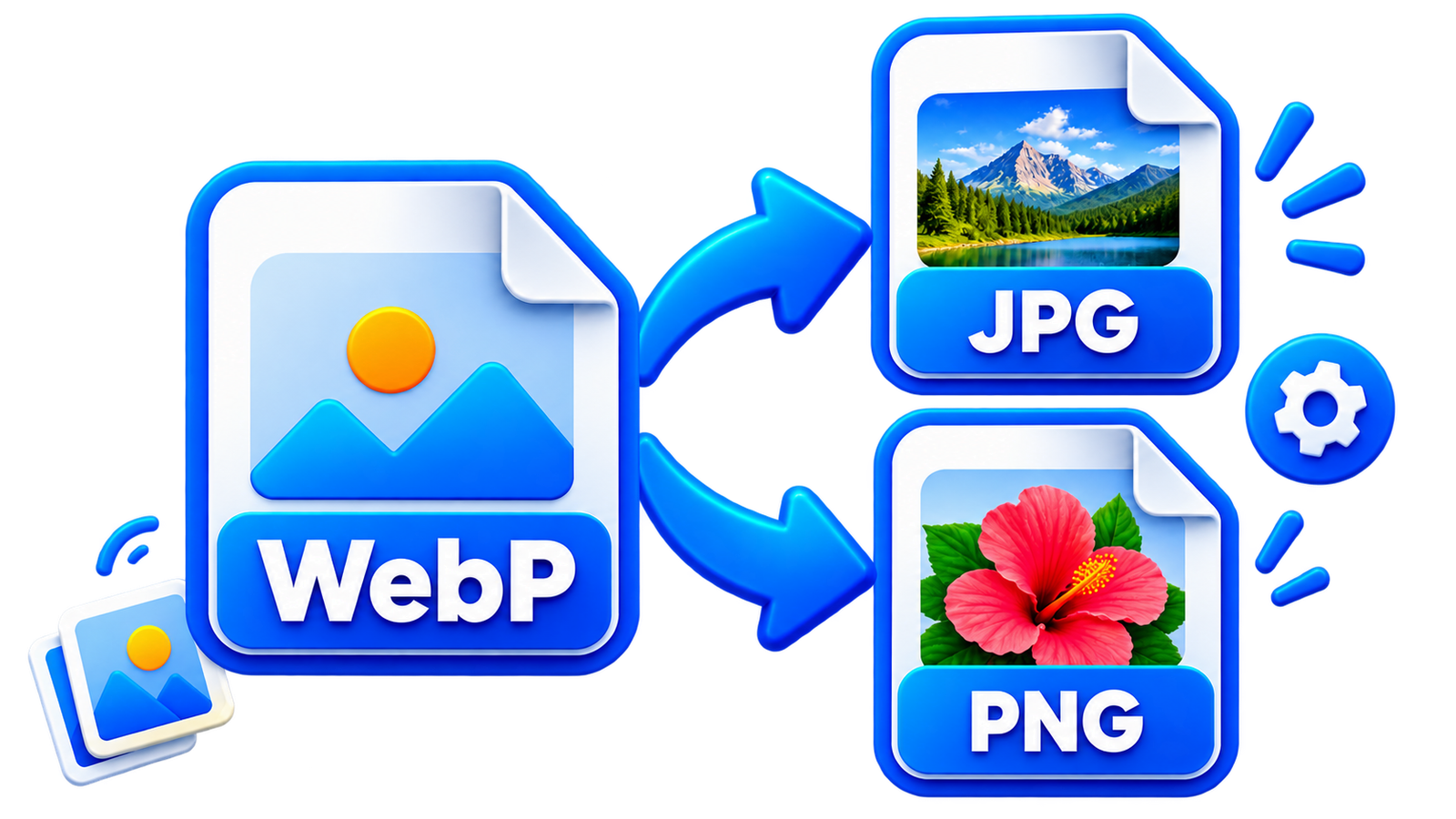
WebP to JPG or PNG Made Simple WebP is great for the web because it can keep image files small while maintaining good quality. But sometimes a website, app, editor, or upload form simply does not accept WebP. That is when converting the image to JPG or PNG can help. With the EKO24.NET WebP Converter, you can convert a WebP image directly in your browser without installing extra software. JPG or PNG? Choose JPG for photos and everyday images. It is widely supported and usually produces a smaller file. Choose PNG when your WebP image has a transparent background or when you want to preserve sharp edges in logos and graphics. JPG does not support transparency, so transparent areas will become white. Convert Your WebP Image Open the WebP Converter, select an image up to 20 MB, and choose JPG or PNG. For JPG, you can also adjust the quality before converting. Once the conversion is complete, preview the result and download your new image. The converter works directly in your browser, so the selected image is not uploaded to EKO24.NET. Which Format Should You Keep? There is no single best format for every image. WebP is useful for modern websites, JPG is convenient for photos and broad compatibility, while PNG is a better choice when transparency matters. If you simply need a WebP file in a more widely accepted format, EKO24.NET WebP Converter gives you a quick way to create the version you need.

Read Article โ†’
Microsoft Refreshes Surface Pro and Surface Laptop With Snapdragon X2 Plus
Tech & Hardware

Microsoft Refreshes Surface Pro and Surface Laptop With Snapdragon X2 Plus

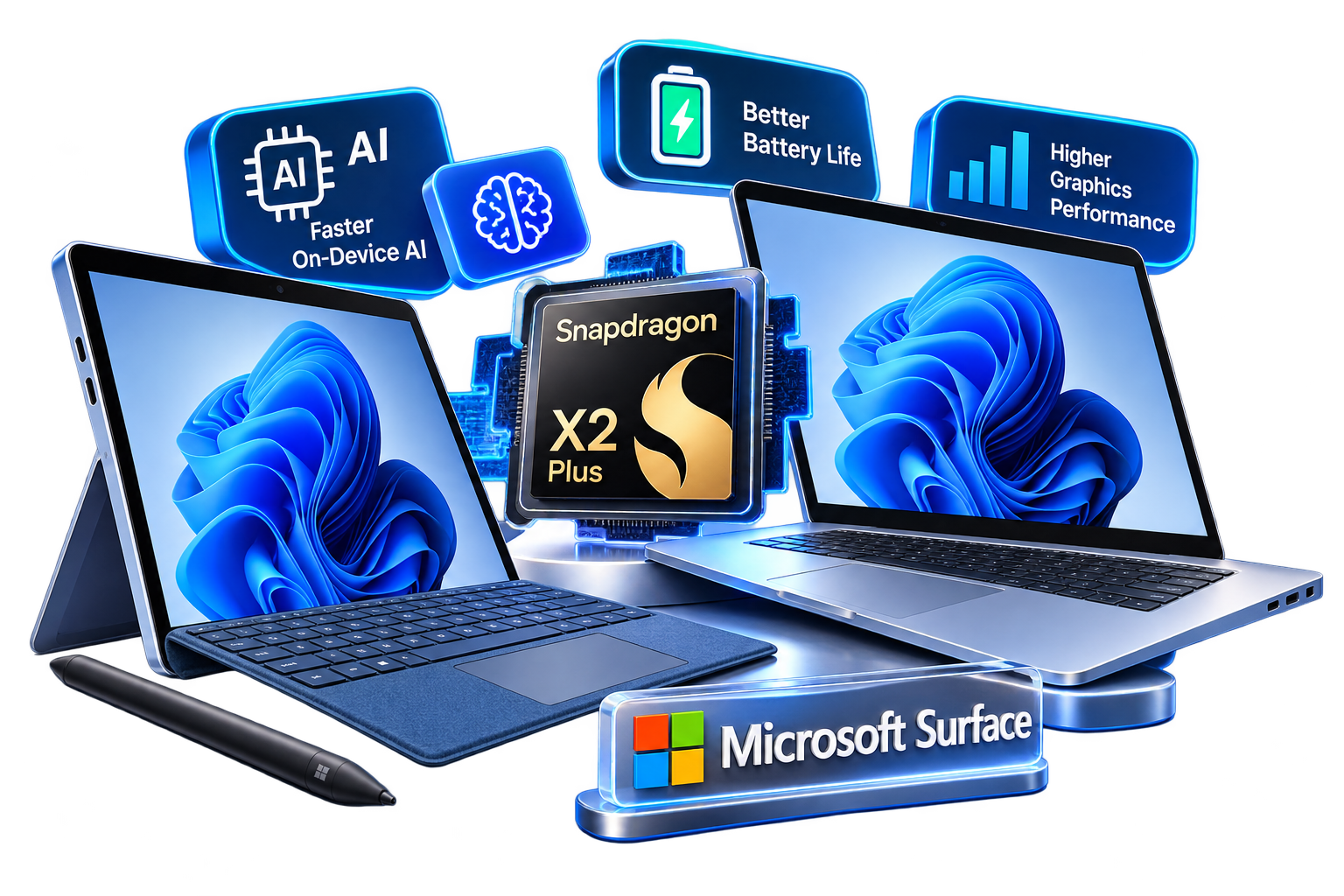
Snapdragon X2 Plus Brings a Major Performance Upgrade According to Microsoft, the new Surface devices deliver up to 17% faster performance in Office productivity workloads compared with the previous generation. The company also reports more than 60% faster graphics performance and up to 95% faster local AI inference on the NPU, with improved battery efficiency of up to 18%. Snapdragon X2 Plus brings improvements to performance, graphics, AI processing and battery efficiency. Surface Pro 12-inch Gets Faster and Brighter The new Surface Pro 12-inch remains a thin, lightweight and fanless Windows PC that can switch between tablet and laptop use. Microsoft Introduces Ink Canvas One of the more interesting additions is Microsoft Ink Canvas, a new AI-powered experience designed around the Surface Slim Pen. Ink Canvas combines drawing, annotation and AI-assisted creative tools with Surface Slim Pen. Users can sketch, annotate, generate images and summarize text directly on the canvas.

Read Article โ†’
How to Test Your Microphone, Webcam, Keyboard, Mouse and Speakers Online
Tech & Hardware

How to Test Your Microphone, Webcam, Keyboard, Mouse and Speakers Online

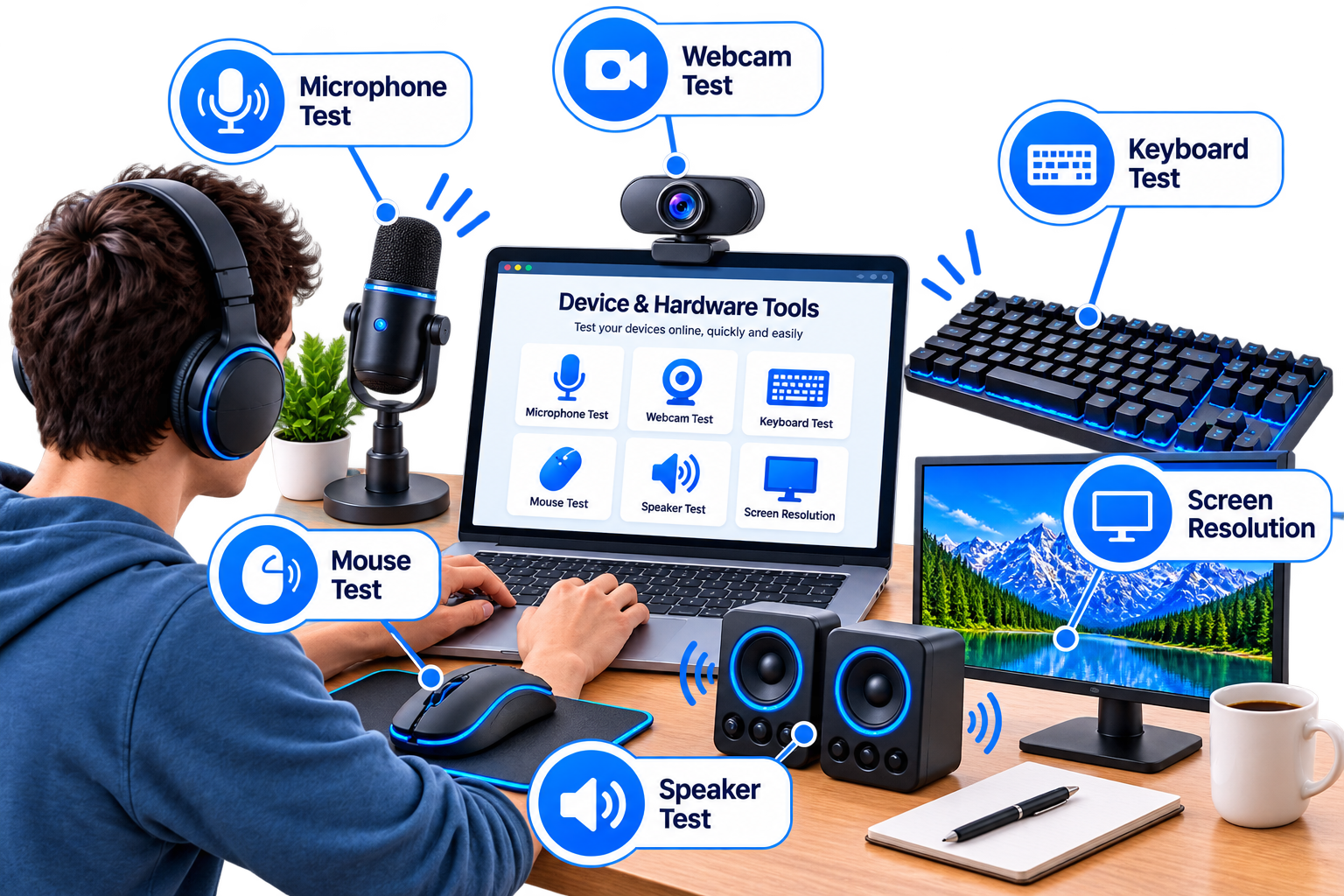
Before joining an online meeting, recording a video, playing a game, or starting a live stream, it is useful to check that your computer hardware is working correctly. A microphone that is too quiet, a webcam that is not detected, or a keyboard key that does not respond can quickly cause problems. You do not always need to install special software to perform these checks. Many basic hardware tests can be completed directly in your browser. EKO24.NET provides free Device & Hardware Tools for testing common computer and mobile device components online. Test Your Microphone Online A microphone test can help you confirm that your browser detects your microphone and that audio is actually being received. This is useful before video calls, voice recordings, online classes, gaming sessions, or livestreams. Open the EKO24.NET Microphone Test, allow microphone access when your browser asks for permission, and start speaking. The tool lets you check whether your microphone is receiving sound without installing additional software. Check Your Webcam Before a Video Call A quick webcam check can prevent last-minute problems before an important meeting or recording. If the camera is connected correctly, your browser should be able to display its video feed after you grant permission. With the Webcam Test, you can verify that the selected camera works directly in your browser. If no image appears, check the browser permission settings and make sure another application is not already using the camera. Find Keyboard Keys That Are Not Working Keyboard problems are sometimes difficult to notice, especially when only one or two keys have stopped responding. Testing individual keys can help determine whether the problem affects a particular key or the entire keyboard. The EKO24.NET Keyboard Tester provides a simple way to press keys and check whether the browser detects them. It can be useful when checking a laptop keyboard, an external keyboard, or a keyboard you have recently connected. Test Your Mouse Buttons A mouse can appear to work normally even when one button has become unreliable. Checking the main buttons individually can help identify clicking problems before you replace the device. Use the Mouse Test to check mouse input directly from your browser. It provides a quick way to verify that common mouse actions are being detected correctly. Check Your Left and Right Speakers Stereo audio problems can be caused by incorrect settings, disconnected speakers, headphones, or an audio channel that is not working. Testing the left and right channels separately can make these problems easier to identify. The Speaker Test lets you test the left speaker, right speaker, or both channels. You can also adjust the test volume, making it useful for speakers and headphones. Check Your Screen Resolution Your display information can be useful when troubleshooting websites, games, screenshots, video content, or responsive layouts. Screen resolution and browser viewport size are not always the same, especially on high-density displays and mobile devices. The Screen Resolution Checker displays information such as your screen resolution, available screen size, browser viewport, device pixel ratio, color depth, orientation, and other display details. Do These Tests Require Software Installation? No installation is required for these EKO24.NET tools. They run through your web browser using capabilities already available on modern devices. Some tests, particularly the microphone and webcam tests, require browser permission before they can access the corresponding hardware. If you deny a permission accidentally, you can usually change it from your browser's site permissions and run the test again. Frequently Asked Questions Can I test my microphone without recording anything? Yes. A browser-based microphone test can check whether audio input is being detected without requiring you to create and save a traditional audio recording. Why is my webcam not appearing in the browser? Check that camera permission has been granted to the website. You should also make sure the camera is connected correctly and that another application is not currently preventing the browser from accessing it. Can I check individual keyboard keys? Yes. The Keyboard Tester allows you to press keys and see whether the browser detects the input, which can help identify keys that are not responding. How can I test the left and right speakers separately? Use the Speaker Test and select the left or right channel. Testing each side separately can help identify stereo channel or speaker problems. Does the Screen Resolution Checker work on phones? Yes. It can display screen and browser information on compatible desktop, tablet, and mobile browsers. Final Thoughts Testing your device before a meeting, recording, livestream, or gaming session can save time and help identify simple hardware problems early. Instead of installing separate programs for every check, you can use EKO24.NET's free Device & Hardware Tools to test your microphone, webcam, keyboard, mouse, speakers, and screen directly from your browser.

Read Article โ†’
Microphone setup for content creators, podcasts and streaming
Tech & Hardware

Best Microphones for Content Creators: USB, XLR, Dynamic & Condenser

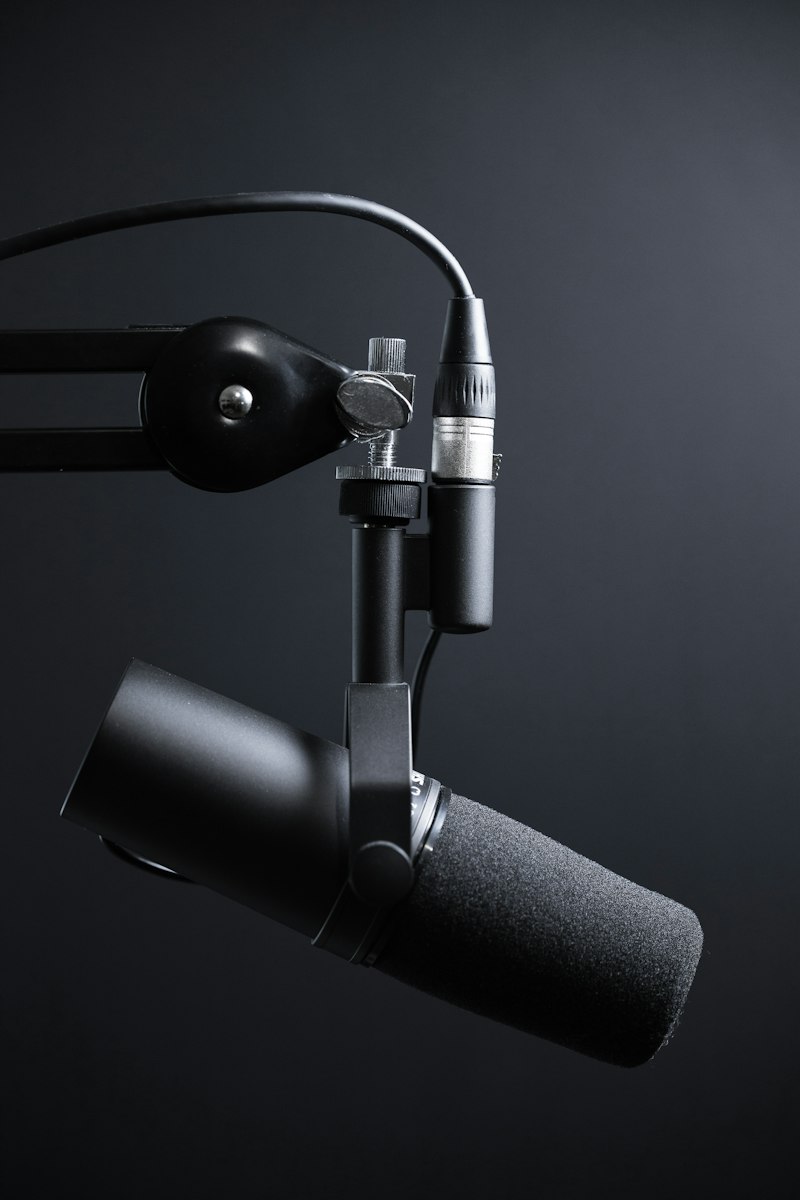
Best Microphones for Content Creators Clear audio can make videos, podcasts and livestreams much easier to follow. You do not always need an expensive studio microphoneโ€”the better choice depends on your room, recording style and whether you prefer a simple USB connection or a more flexible XLR setup. Dynamic vs. Condenser Microphones ๐ŸŽ™๏ธ Dynamic Microphones A practical choice for streaming, spoken voice and rooms that are not acoustically treated. Their close-working style can make unwanted room sound easier to control when the microphone is positioned correctly. ๐ŸŽง Condenser Microphones Often chosen when you want more detail and sensitivity. They can work well for voice, music and controlled recording spaces, but they may also capture more of the room around you. USB or XLR? USB microphones are convenient because they connect directly to a computer and usually require very little setup. They are a good starting point for creators who want to record quickly without buying extra audio equipment. XLR microphones normally connect through an audio interface or mixer. That adds cost and setup time, but it also gives you more flexibility if you plan to expand your recording system later. What Matters Before You Buy? Your room: hard, reflective rooms may need more attention to microphone placement and background noise. Your content: podcasts, gaming, interviews, music and outdoor video can require different setups. Connection: check whether you need USB convenience or an XLR interface. Positioning: a boom arm or stable stand can help keep the microphone close and consistent. Monitoring: headphone monitoring is useful for hearing problems before you finish a recording. Placement Can Matter More Than Price A good microphone placed too far away can still sound weak or pick up too much room noise. For spoken content, keep the microphone at a sensible distance from your mouth and experiment with its angle. A pop filter can also help control strong breath sounds. Before replacing your microphone, try improving placement, reducing nearby noise and adding soft furnishings to a reflective room. Small changes can make a noticeable difference. Which Type Is Right for You? For a simple desktop setup, a USB microphone is often the easiest route. If your room is noisy, a suitable dynamic microphone used close to the speaker can be practical. If you record detailed vocals or instruments in a controlled space, a condenser microphone may suit the job better. Final Thoughts The best microphone is the one that fits your recording environment and workflow. Start with the type and connection you actually need, then pay attention to placement and room sound before spending more on equipment. Related guides: Vlogging Cameras & Creator Setups and Video Editing Tools for Creators. If you need to extract audio from your own video files, try the EKO24.NET Video to MP3 Converter.

Read Article โ†’
Top Cameras for Vlogging, Streaming, and Content Creation 2026
Tech & Hardware

Top Cameras for Vlogging, Streaming, and Content Creation 2026

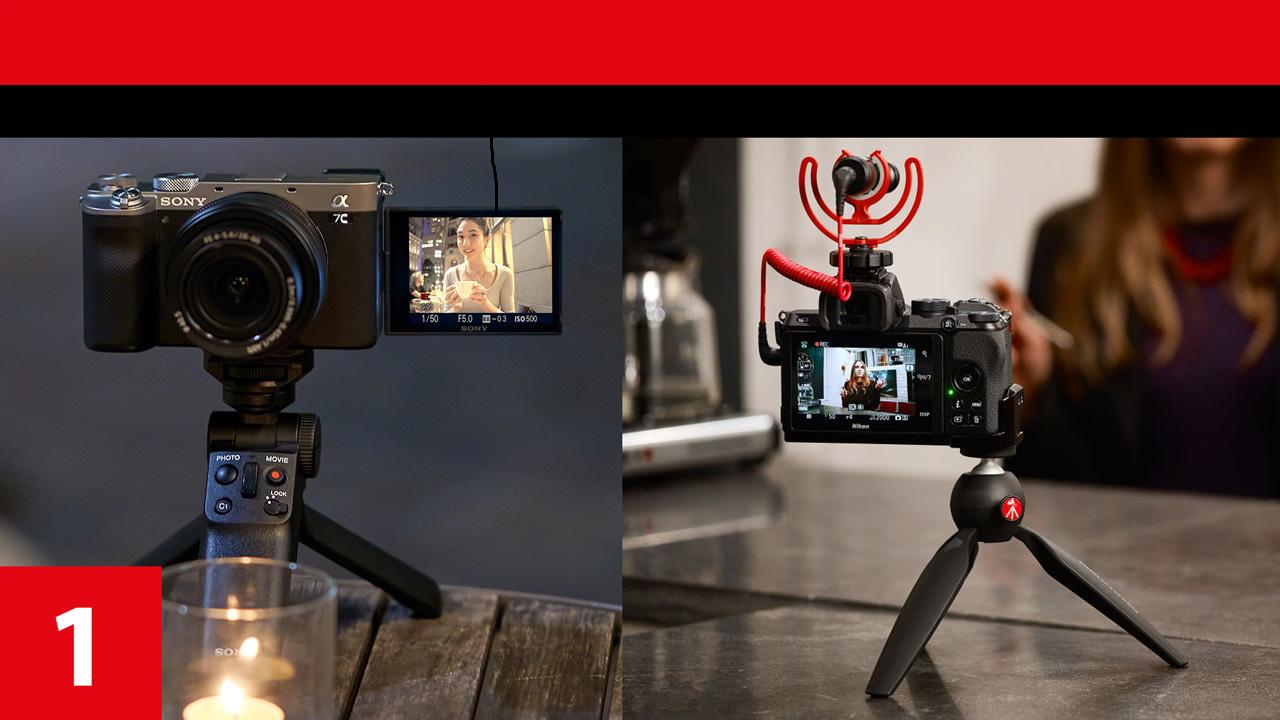
A well-built camera can greatly boost the production value of your channel. The type of camera you go for depends on the type of content you are going to make. Tips for Creators. 1. Autofocus feature. An effective eye tracking autofocus will allow you to be perfectly in focus while shooting. 2. Flip screen and audio inputs. A fully rotating screen and the ability to have an outside microphone (3.5mm jack) is definitely required when you are doing the filming by yourself. 3. Low-light capability. Bigger sensors will help to get the clear image without noise indoors or in studio lighting setup. Regardless of whether you just do reviews on your computer or make vlogs with the help of your smartphone, it is always very important to know the right lenses and reliable camera body. Related guides: Best Vlogging Cameras & Creator Setups for 2026: Comprehensive BuyerM Guide and Professional Video Editing Tools for Faster Content Creation.

Read Article โ†’
Transform Your Videos with Professional Lighting Gear
Tech & Hardware

Transform Your Videos with Professional Lighting Gear

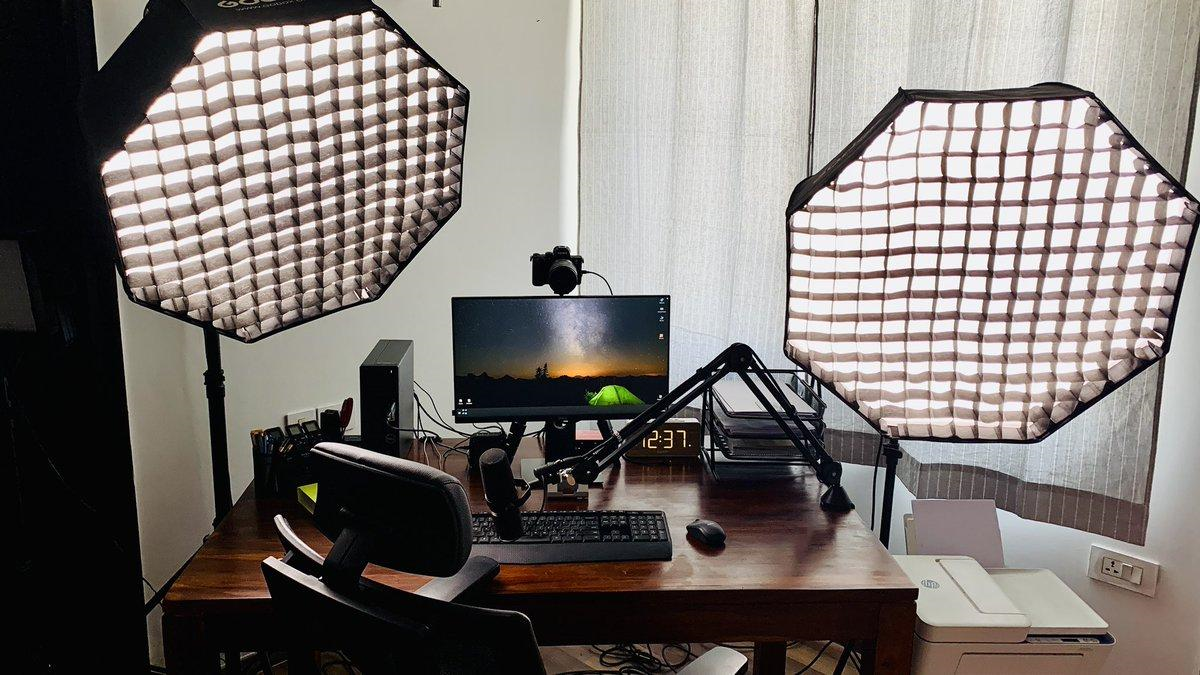
Improper lighting can spoil even the highest quality video. To achieve the desired effect, you must spend several hours working with your lighting setup. The lighting equipment you will need: - Softbox LED Lights: Creates diffuse light for maximum shadow reduction on your face. - RGB Backlights: Creates colored accents for your background. - Ring Lights: Perfect for short, simple vertical videos and interviews. Using just 3 lights โ€“ Key light, Fill light, Background light โ€“ you can easily transform your basic videos into cinematic videos. Related guides: Professional Video Editing Tools for Faster Content Creation and Best Audio Microphones for Streamers and Podcasters.

Read Article โ†’
Professional Video Editing Tools for Faster Content Creation
Tech & Hardware

Professional Video Editing Tools for Faster Content Creation

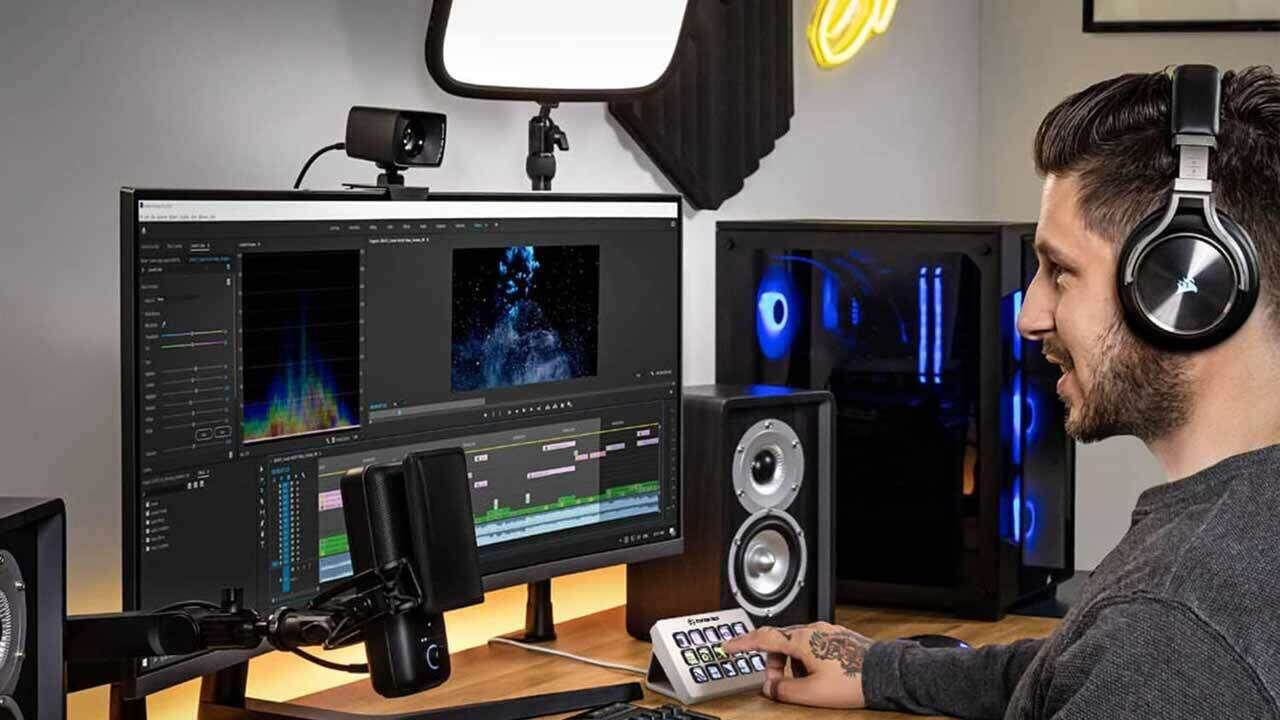
The majority of time spent by any creator is allocated toward editing. Using the most effective software and hardware combination is essential for speeding up video rendering much more quickly. Workflow Basics: - Software: DaVinci Resolve is best used for color correction purposes while Premiere Pro provides possibilities for interactive work and plugins. - Keyboard Shortcuts: Having a specific controller for making timeline cuts will give the possibility for the creator to skip using mouse and keyboard. - Fast NVMe External Drives: The speed at which video editors can store scratch files and work with the 4K format will determine the overall speed of editing. Related guides: Top Cameras for Vlogging, Streaming, and Content Creation 2026 and Transform Your Videos with Professional Lighting Gear.

Read Article โ†’
Best Vlogging Cameras and Creator Setups for 2026
Tech & Hardware

Best Vlogging Cameras and Creator Setups for 2026

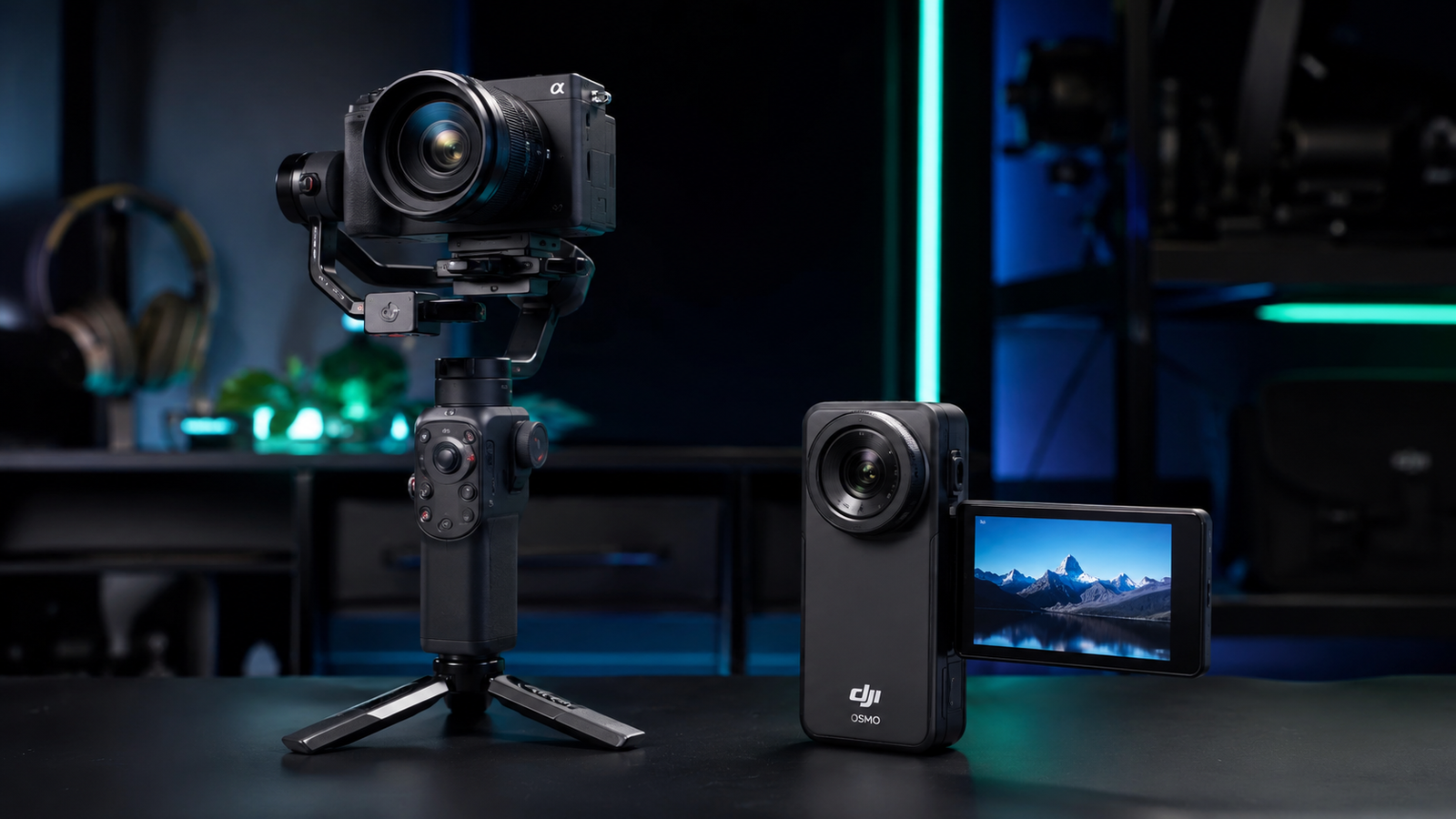
.eko-tech-memo { font-family: 'Segoe UI', system-ui, sans-serif; color: #e2e8f0 !important; line-height: 1.7; } .eko-tech-memo p, .eko-tech-memo li { color: #cbd5e1 !important; } .eko-tech-memo h2, .eko-tech-memo h3, .eko-tech-memo .card-title { color: #f8fafc !important; } .eko-tech-memo h4 { color: #a5b4fc !important; } .eko-tech-memo strong { color: inherit !important; } .memo-hero { background: linear-gradient(135deg, #1e1b4b 0%, #0f172a 100%); border: 1px solid #312e81; border-radius: 16px; padding: 24px; margin-bottom: 24px; } .memo-badge { display: inline-flex; align-items: center; gap: 6px; background: #3730a3; color: #c7d2fe; padding: 4px 12px; border-radius: 20px; font-size: 0.85rem; font-weight: 600; margin-bottom: 12px; } .memo-title { color: #ffffff; font-size: 1.75rem; font-weight: 800; margin: 0 0 12px 0; } .tech-card-grid { display: grid; grid-template-columns: repeat(auto-fit, minmax(280px, 1fr)); gap: 16px; margin: 24px 0; } .tech-card { background: #1e293b; border: 1px solid #334155; border-radius: 12px; padding: 20px; transition: transform 0.2s; } .tech-card:hover { border-color: #6366f1; transform: translateY(-2px); } .card-header { display: flex; align-items: center; gap: 12px; margin-bottom: 12px; } .card-icon { width: 40px; height: 40px; background: #312e81; border-radius: 10px; display: flex; align-items: center; justify-content: center; fill: #818cf8; } .card-title { color: #f8fafc; font-size: 1.1rem; font-weight: 700; margin: 0; } .spec-list { list-style: none; padding: 0; margin: 12px 0 0 0; } .spec-list li { display: flex; align-items: center; gap: 8px; font-size: 0.9rem; color: #cbd5e1; margin-bottom: 6px; } .spec-list li svg { width: 16px; height: 16px; fill: #10b981; flex-shrink: 0; } .comparison-table-wrapper { overflow-x: auto; margin: 24px 0; border: 1px solid #334155; border-radius: 12px; } .comparison-table { width: 100%; border-collapse: collapse; text-align: left; background: #0f172a; } .comparison-table th { background: #1e293b; color: #38bdf8; padding: 14px; font-size: 0.9rem; border-bottom: 2px solid #334155; } .comparison-table td { padding: 12px 14px; border-bottom: 1px solid #1e293b; color: #cbd5e1; font-size: 0.88rem; } .verdict-box { background: linear-gradient(90deg, #064e3b 0%, #022c22 100%); border-left: 4px solid #10b981; border-radius: 8px; padding: 16px; margin-top: 24px; } EKO24.NET Hardware Intelligence Best Vlogging Cameras & Creator Setups for 2026 In-depth technical memo comparing sensor performance, Eye-AF tracking, and recording modes to help creators pick the perfect camera. Sony ZV-E10 II The most complete camera for studio creators and vloggers needing interchangeable lenses. 26 MP APS-C BSI CMOS sensor 4K 60fps recording (10-bit 4:2:2 color depth) Hybrid AF with AI Eye Tracking & Product Showcase mode DJI Osmo Pocket 3 Top pick for mobile shooting and travel thanks to its built-in 3-axis mechanical gimbal. Integrated 3-Axis Mechanical Gimbal stabilization 1-Inch CMOS Sensor for strong low-light performance Rotating OLED screen supporting vertical Shorts/Reels mode Camera Sensor Size Video Resolution Image Stabilization Est. Price Sony ZV-E10 II APS-C 4K 60fps (10-bit) Electronic + Lens $999 DJI Osmo Pocket 3 1-Inch 4K 120fps (Slow-mo) 3-Axis Mechanical $669 Canon PowerShot V10 1-Inch 4K 30fps Built-in Electronic $429 ๐Ÿ’ก EKO24.NET Team Recommendation If your content relies on daily movement and travel, the DJI Pocket 3 provides the fastest setup and smoothest stabilization. For educational, studio, and review content where background blur and lighting control matter, the Sony ZV-E10 II is the better long-term investment. Related guides: Top Cameras for Vlogging, Streaming, and Content Creation 2026 and Best Audio Microphones for Streamers and Podcasters.

Read Article โ†’